
How to Block Power Platform Access with Conditional Access


The Microsoft Power Platform is certainly true to its name. It places an incredible amount of power in the hands of your workforce to allow them to overcome all sorts of information management & process challenges.
But, to borrow the Spiderman lesson:
With great power, comes great responsibility.
In this case, responsibility comes in the form of governance controls and a well-trained user population that understands where their individual solutions butt up against (or evolve into) enterprise efforts.
Some organizations are suited to lean into these sorts of capabilities without too much preparatory work, while others might see a level of risk that they can’t justify. The challenge is that Microsoft doesn’t really make a super obvious switch to simply disable these capabilities for selected users.
If you’re still working on the governance piece and need to temporarily lock the door for portions of your organization, Conditional Access can provide a practical solution.
By targeting specific Microsoft 365 groups, you can use Conditional Access policies to restrict access to Power Platform services while allowing approved users to continue working with them.
Step 1. Create the Conditional Access Policy
- From the top of the screen, select the option for "+ Create new policy"
- Enter a Name for the policy (in this case, i used "Block Power Platform")
- Under Assignments, choose the correct option to match your scenario. For instance, you can elect to apply the restriction to all users except specific groups that you identify, only apply to specific groups, etc.
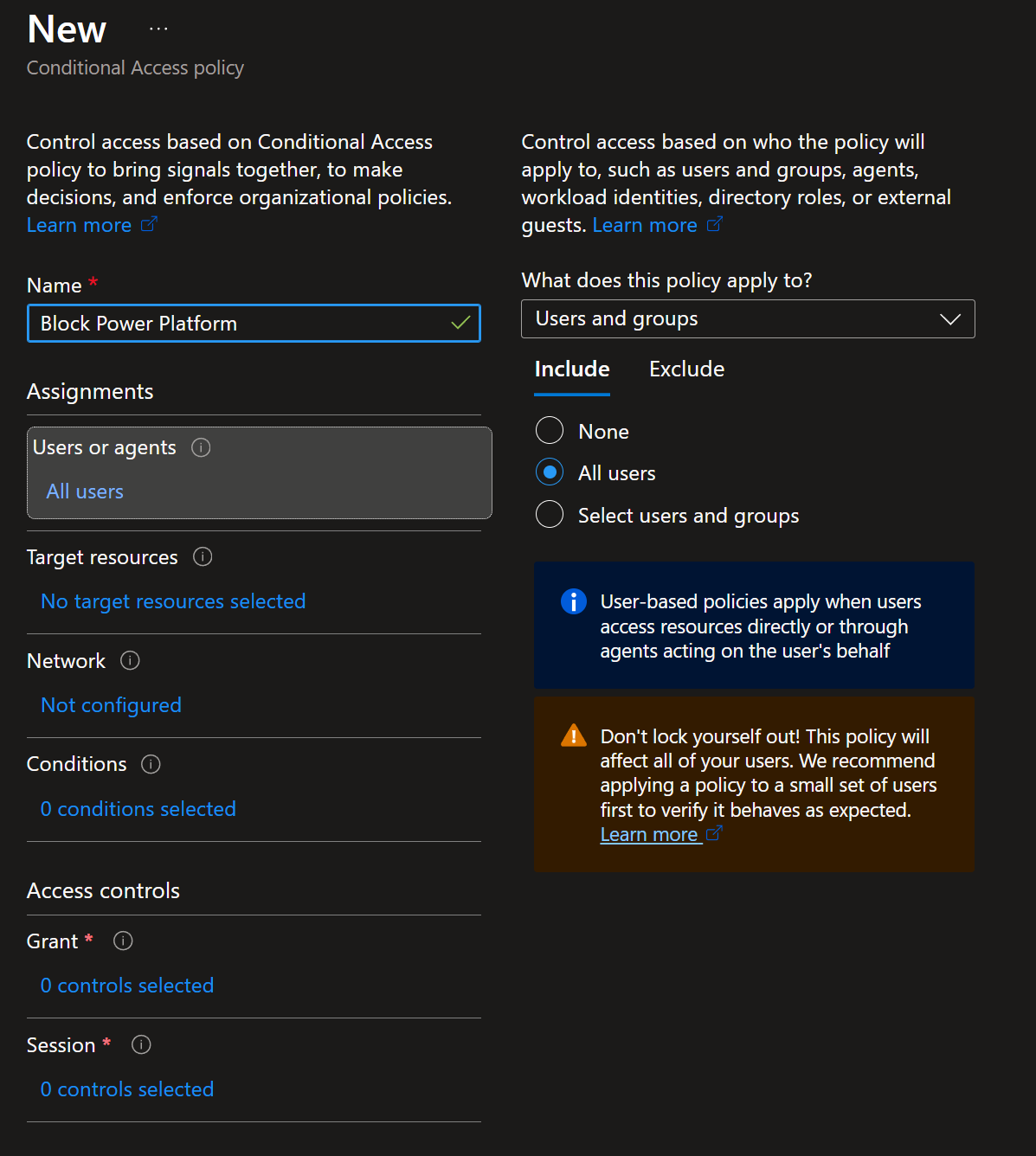
- Select Target Resources and then select "Resources (formerly cloud apps)" from the drop down.
- Choose "Select resources" from the options under "Include".
- Search for and select "PowerApps Service" from the list of available services.
- Click into the "Grant" section and select "Block access". In the "For multiple controls" area at the bottom, choose "Require one of the selected controls"
- Save the policy.
When you're done, click the "Save" button. As always, its usually a good idea to run new conditional access policies in "Report only" mode until you are able to validate impact. Once you're content with where & why you're seeing it apply, move it to the "On" state.
Step 2. Verify Impact
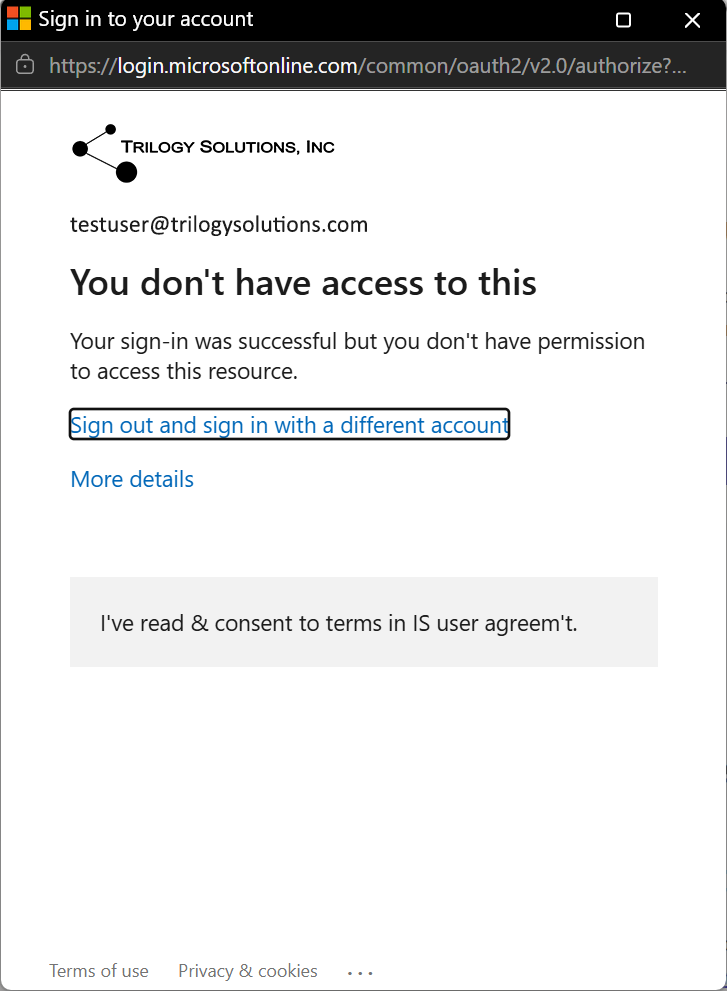
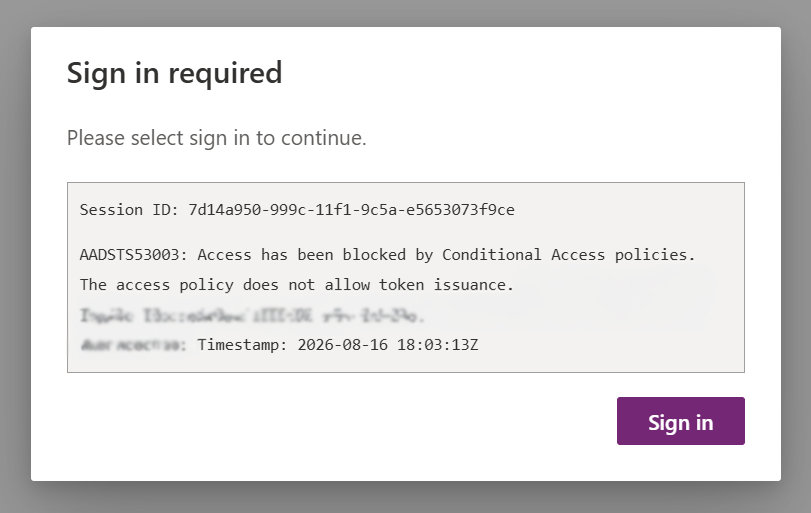
Using an account that would be included in your policy, attempt to go to any of the affected apps.
You should see a combination of the following (depending upon which resource you're trying to access):
or
Considerations
This process will block affected users from creating or using the products within the Power Platform.
That distinction is important. If a user is included in the scope of the Conditional Access policy, they won’t just be prevented from building new solutions - they may also lose access to existing apps and certain interactive flows that they already rely on.
Because of that, I’d strongly recommend testing the policy with a limited group first and using Report-only mode before enforcing it more broadly.
The Approvals app, library-level document approval flows and any flow that uses connections that are outside the policy will continue to function as intended.
Final Thoughts
Once you’re ready to broaden access to the Power Platform, you can disable the Conditional Access policy or adjust its scope as part of your longer-term governance strategy.
This approach works well as a temporary control while you establish the governance, training, and support structures needed to safely expand Power Platform access.